Automation
How to Use Vrbo Scheduled Templates to Automatically Share Your House Manual: A 2026 Guide
Desktop setup guide. Looking for the phone guide? Click here
You’ve worked tirelessly to create a beautiful Welcome guide for your Vacation Rental. In addition to having all the basics covered like your contact information, house rules, safety / emergency info, amenities, and recommendations you’ve personalized it and truly made it your own.
With Vrbo Scheduled Templates, you can now automatically send your Guest Manual to guests shortly after they book. This helps them plan their trip, arrive knowing exactly what to expect, and gives them a single place to find answers, reducing repetitive questions and improving the overall guest experience.
Video: Auto-share your Guest Manual on Vrbo
Step by Step: Auto-share your Guest Manual on Vrbo
1. Share
Click on the share button on the Guest Manual Editor web page. This will show the many different ways your Guest Manual can be shared.

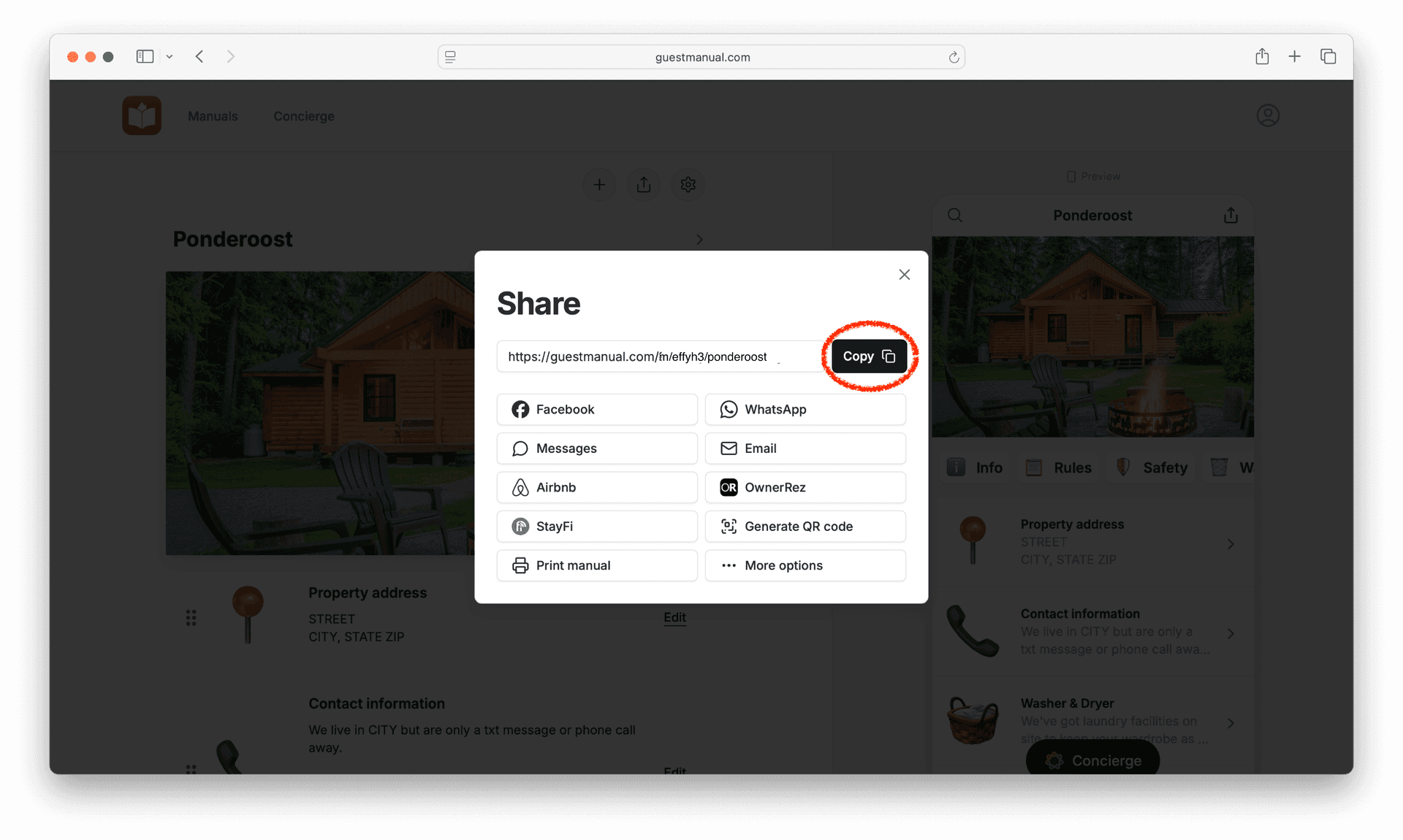
2. Copy web link
We will be pasting in the web link to your Guest Manual in to the Vrbo website. Click on the Copy button to copy the web link to your Guest Manual.
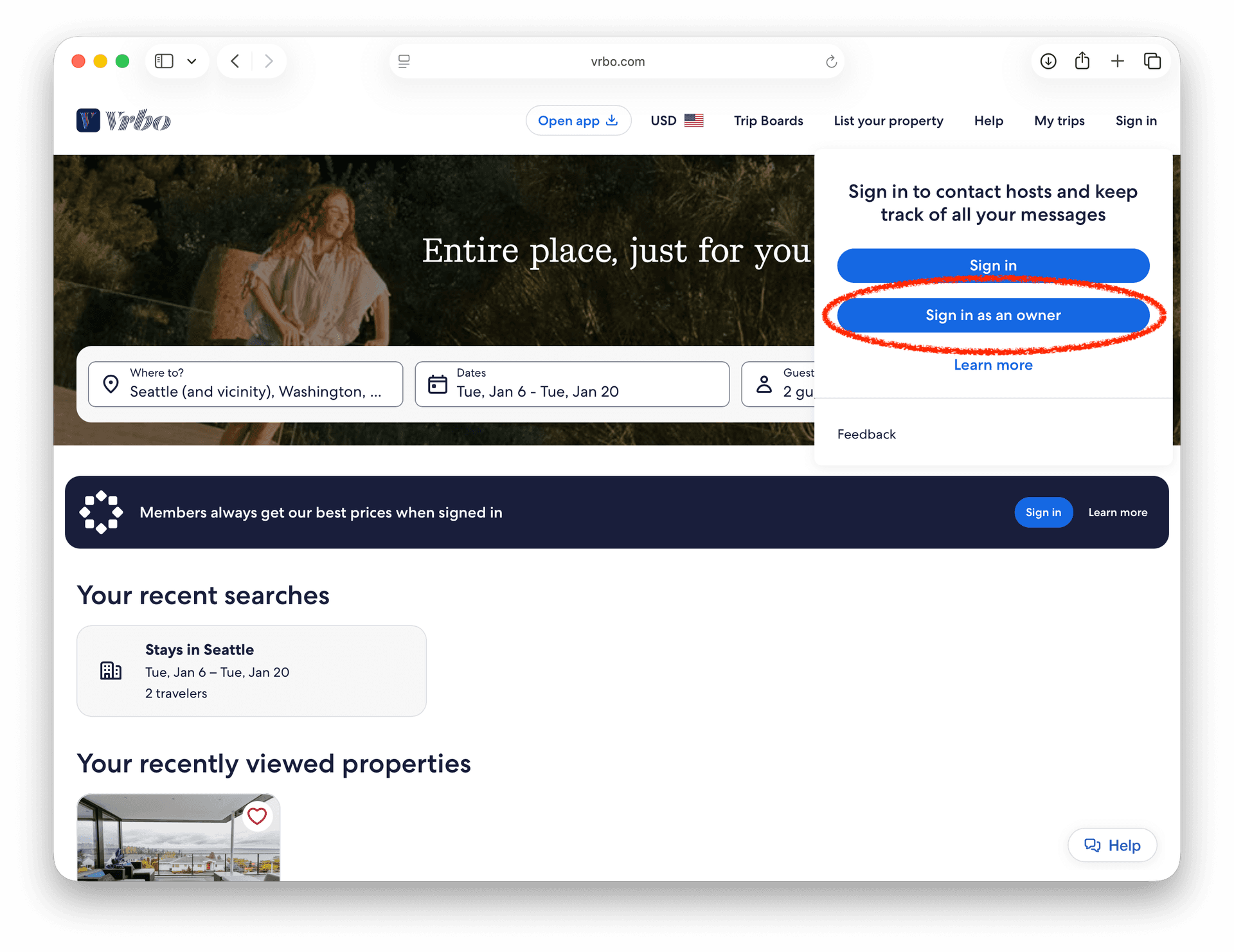
3. Log in to Vrbo
Navigate to www.vrbo.com using your favorite web browser and click on the Sign in button. Then click on the Sign in as an owner button.
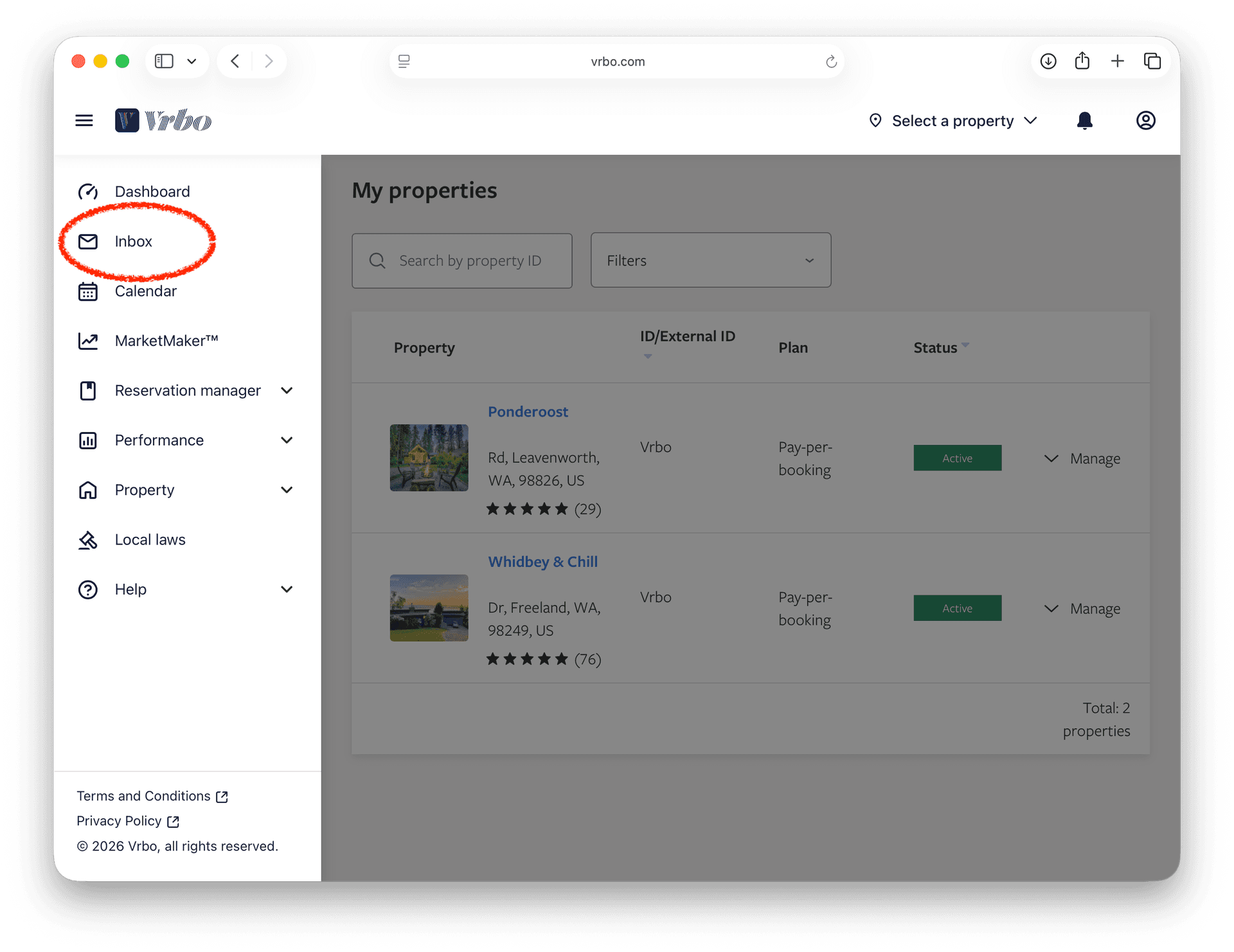
4. Navigate to Inbox
The Inbox section is where you can view all guest correspondence and set up custom message templates. Click on Inbox in the left nav to be routed to the Inbox section.
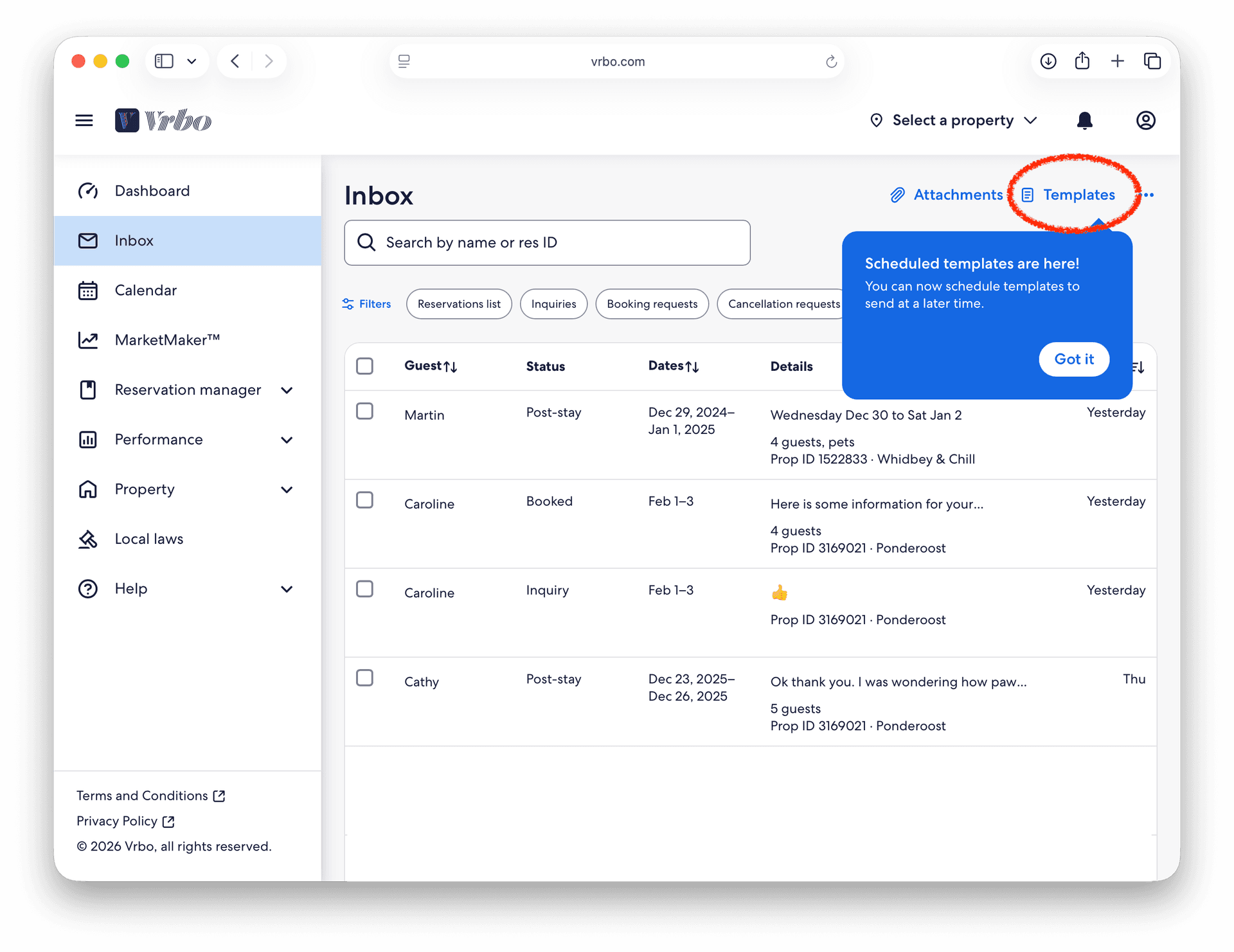
5. Go to Templates
Vrbo has recently added support for scheduled templates! Click on Templates to create a new scheduled message template.
6. Create New Template
Click on the Create a new template button to create a new scheduled message template
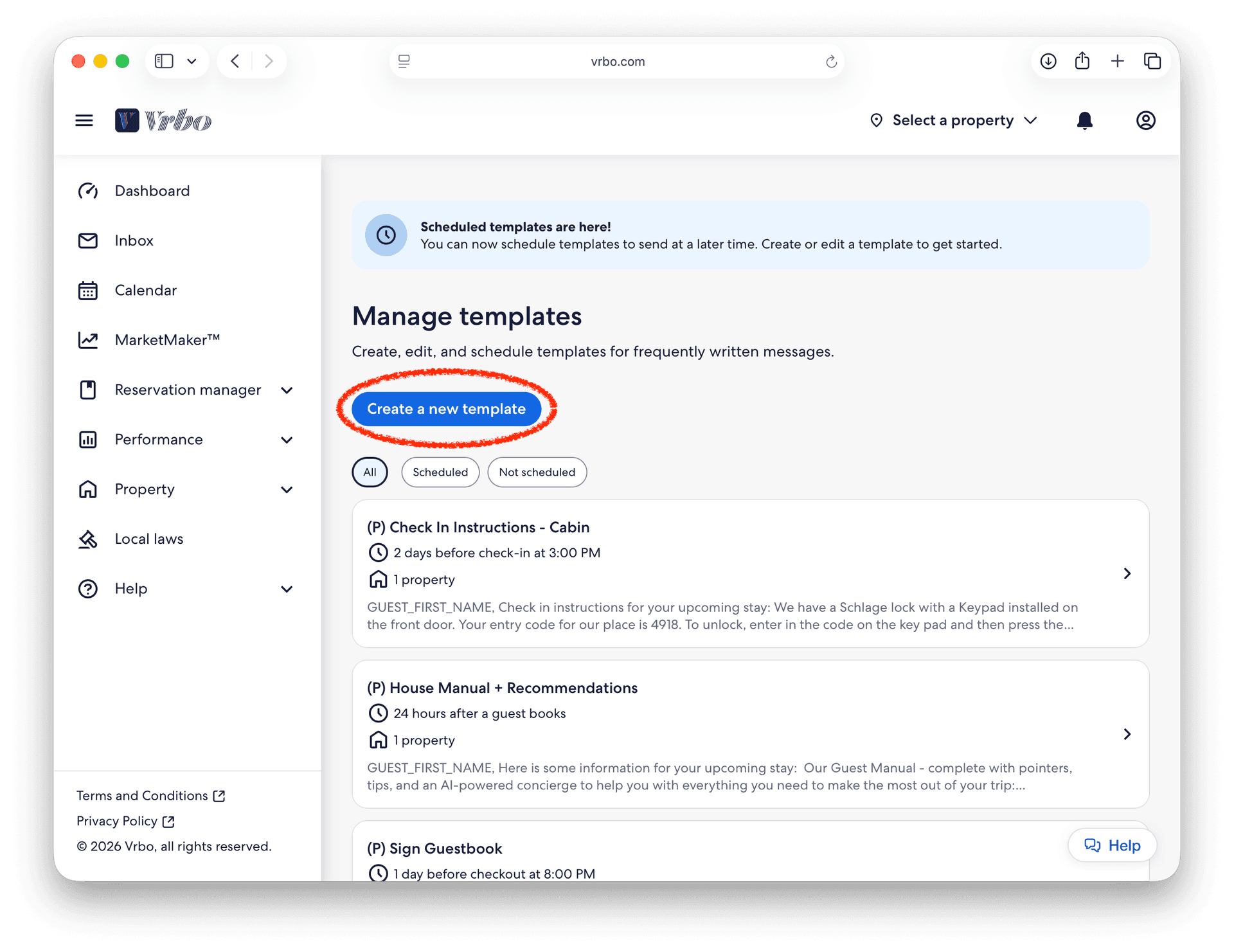
7. Personalize Template
Give your template a descriptive name like "Share Guest Manual" Click on the Personalize button to include the guest name in your template.
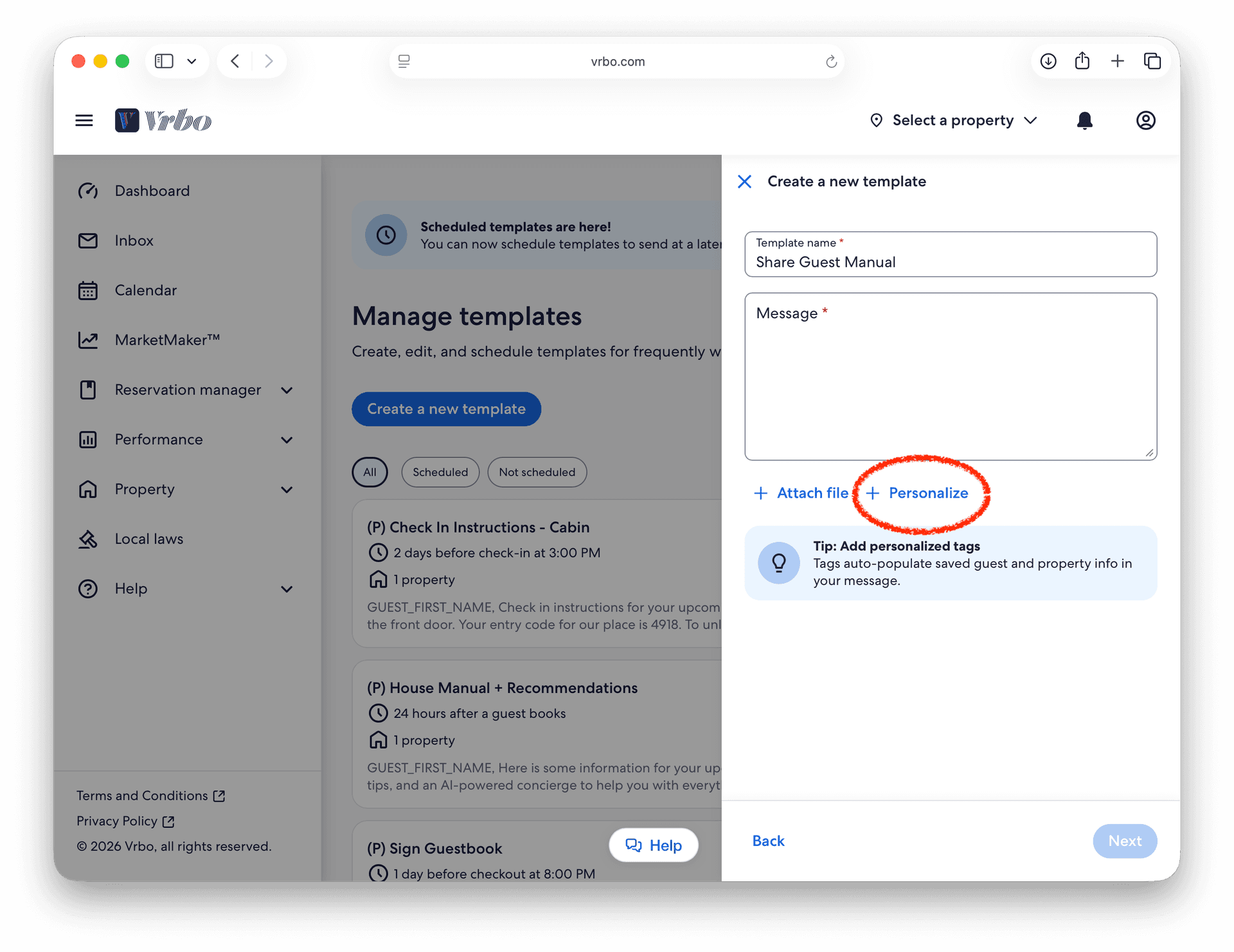
8. Insert Guest Name
Click on Guest first name to automatically insert the first name of the guest in to your new scheduled message template.
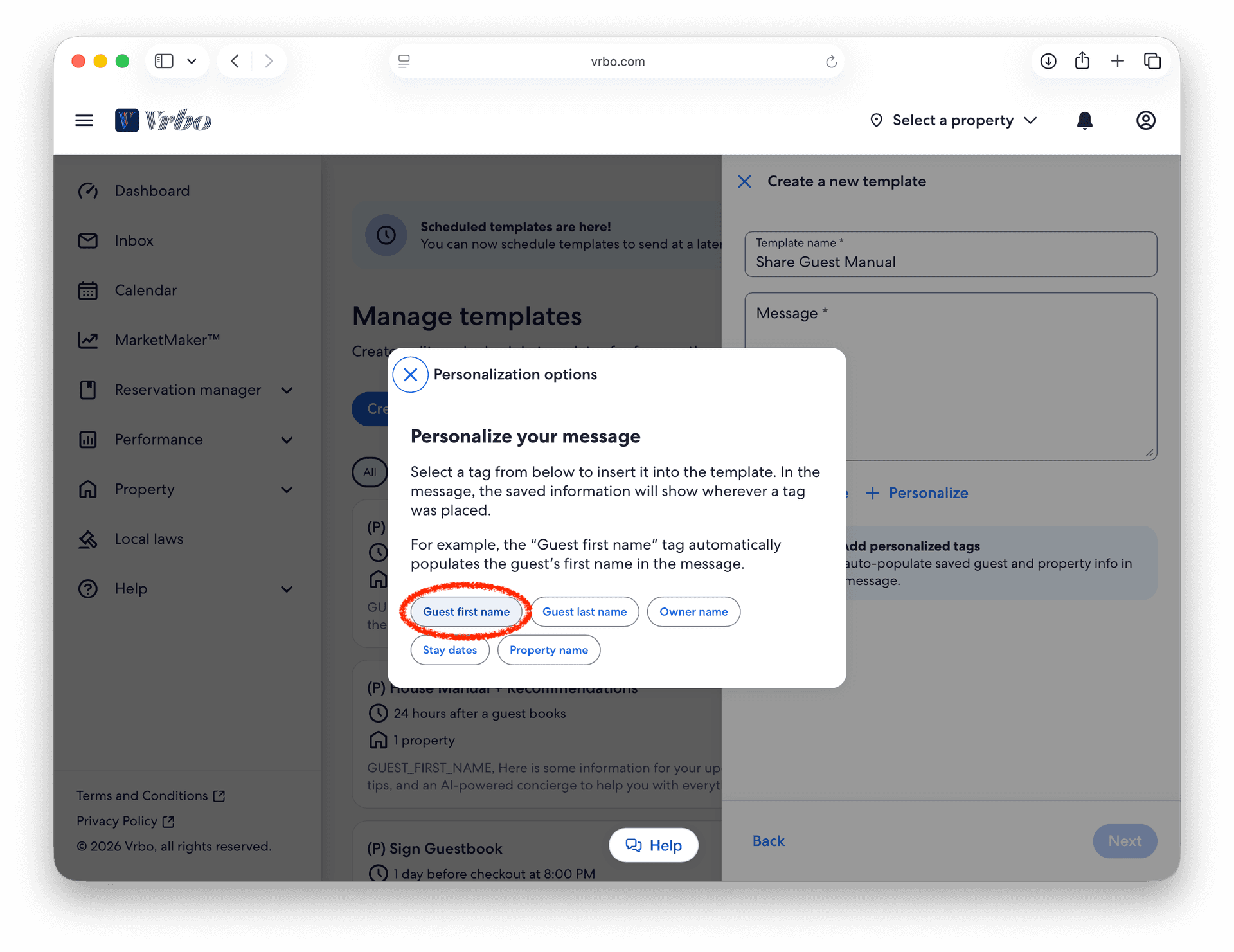
9. Add Message
Enter in descriptive message, paste in the link to your Guest Manual, and click on the Next button. A sample message may look like this: Our Guest Manual - complete with pointers, tips, and an AI-powered concierge to help with everything you need to make the most of your trip:
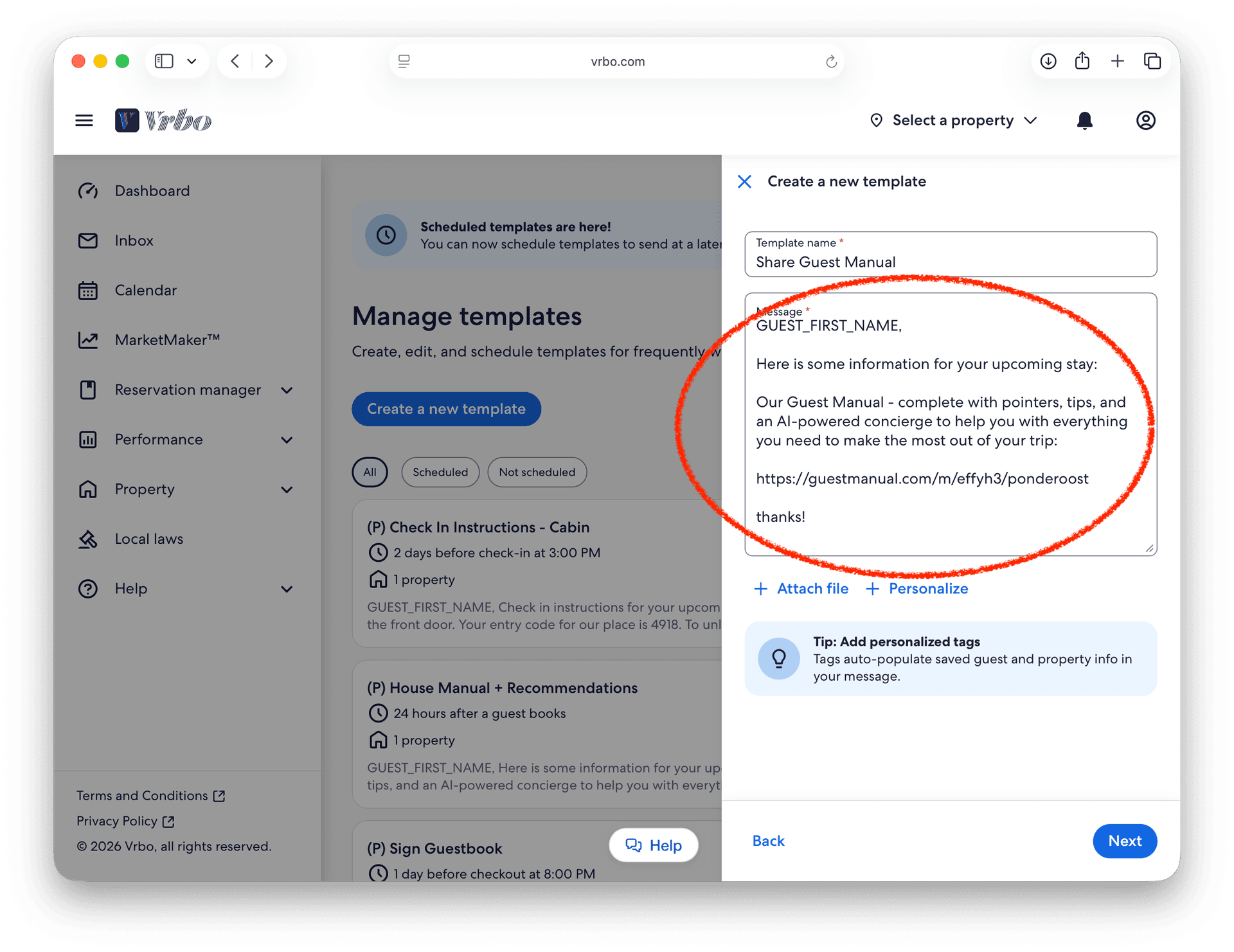
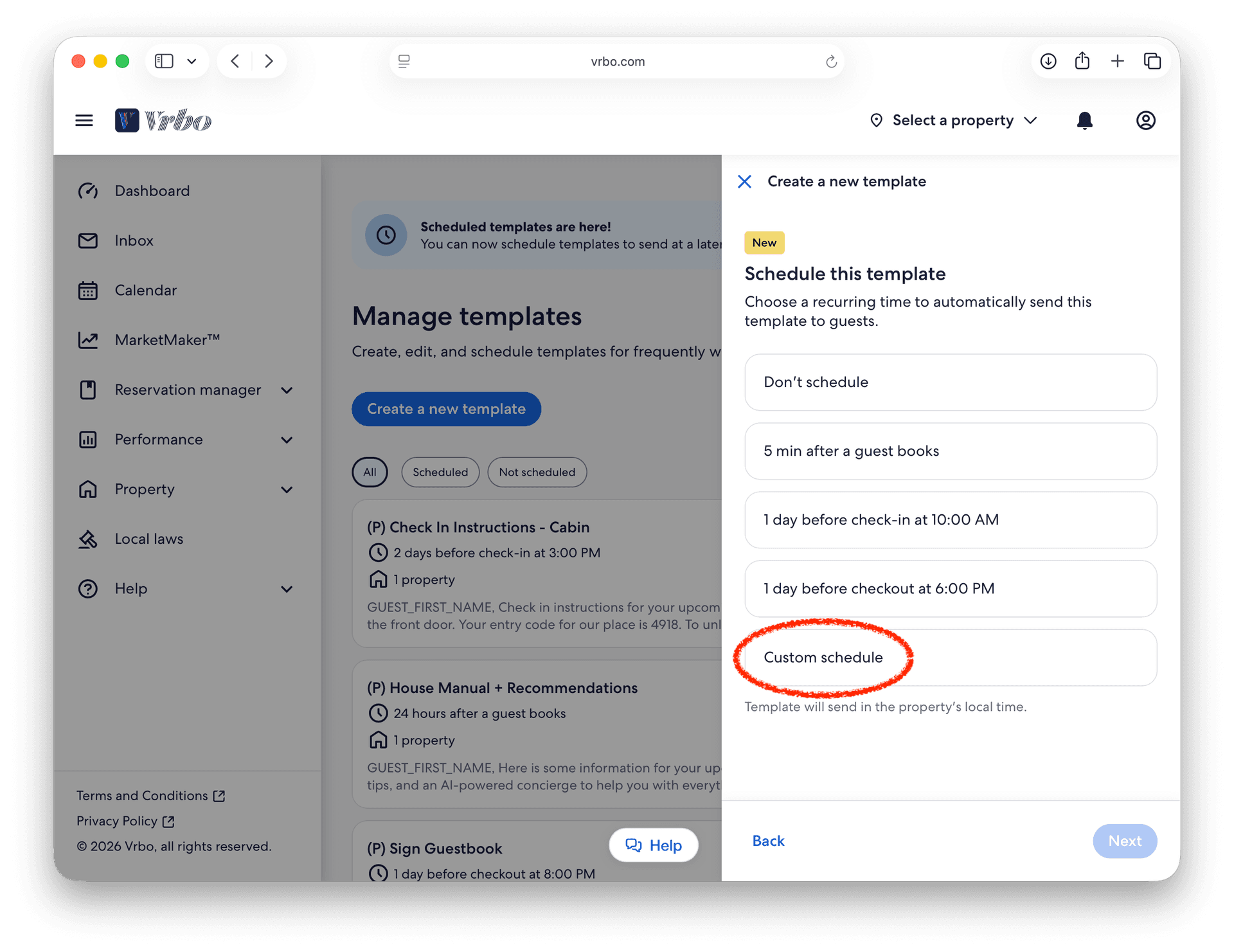
10. Custom Schedule
We recommend sending the Guest Manual to your guests 24 hours after they book. Click on Custom schedule and click on Next to set this up.
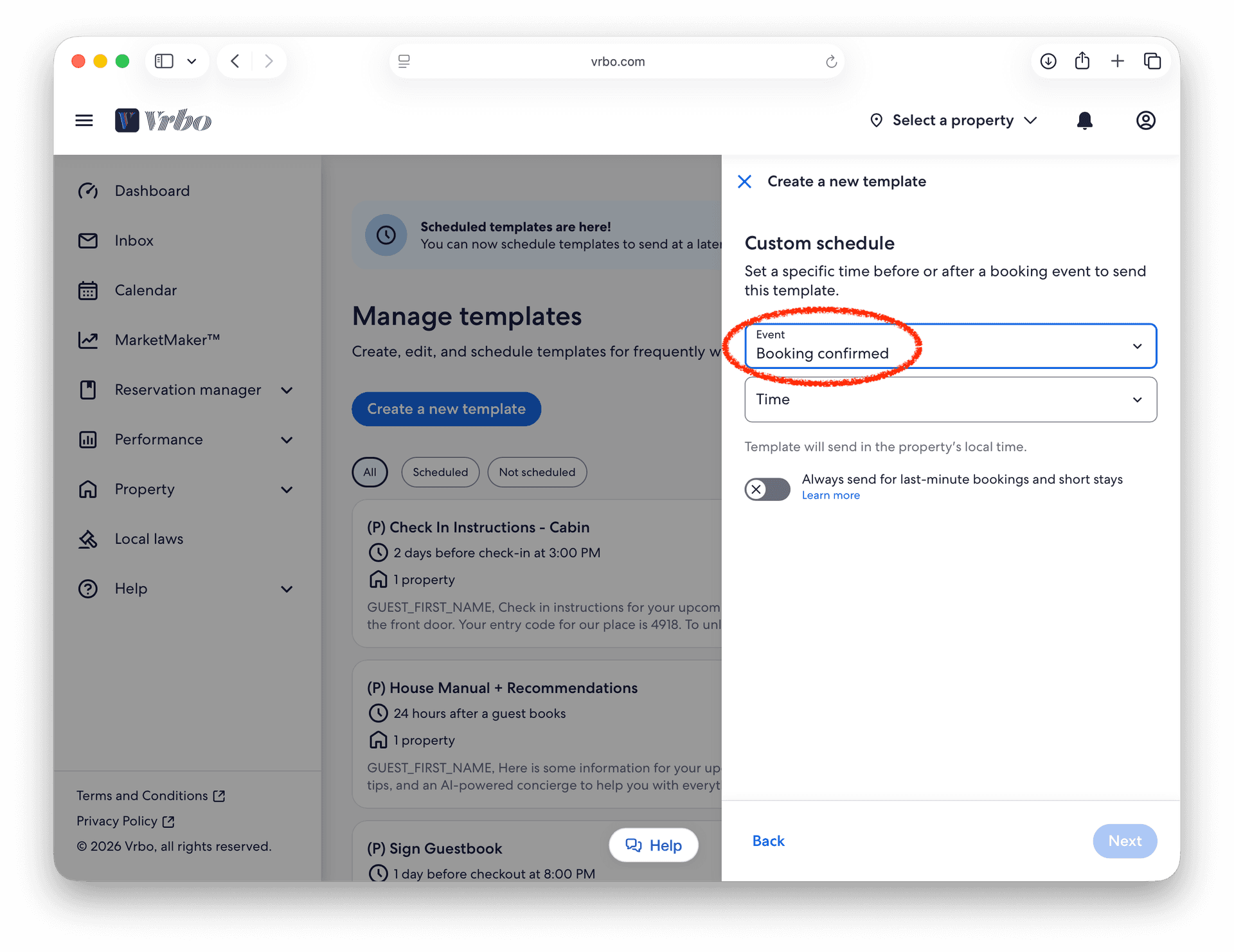
11. Schedule Event
Select "Booking confirmed" in the Event pulldown.
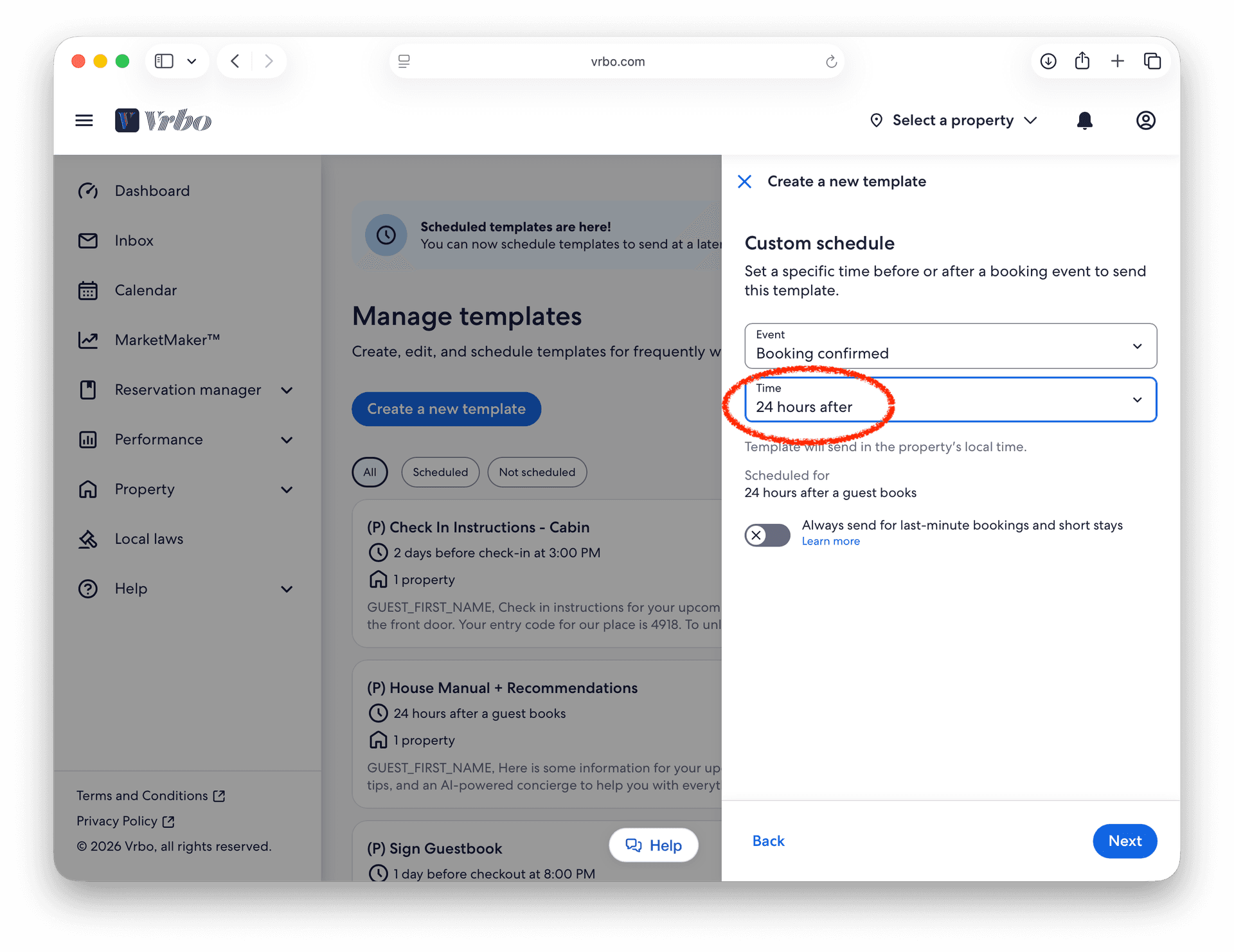
12. Schedule Time
Select "24 hours after" in the Time pulldown. The click on the Next button.
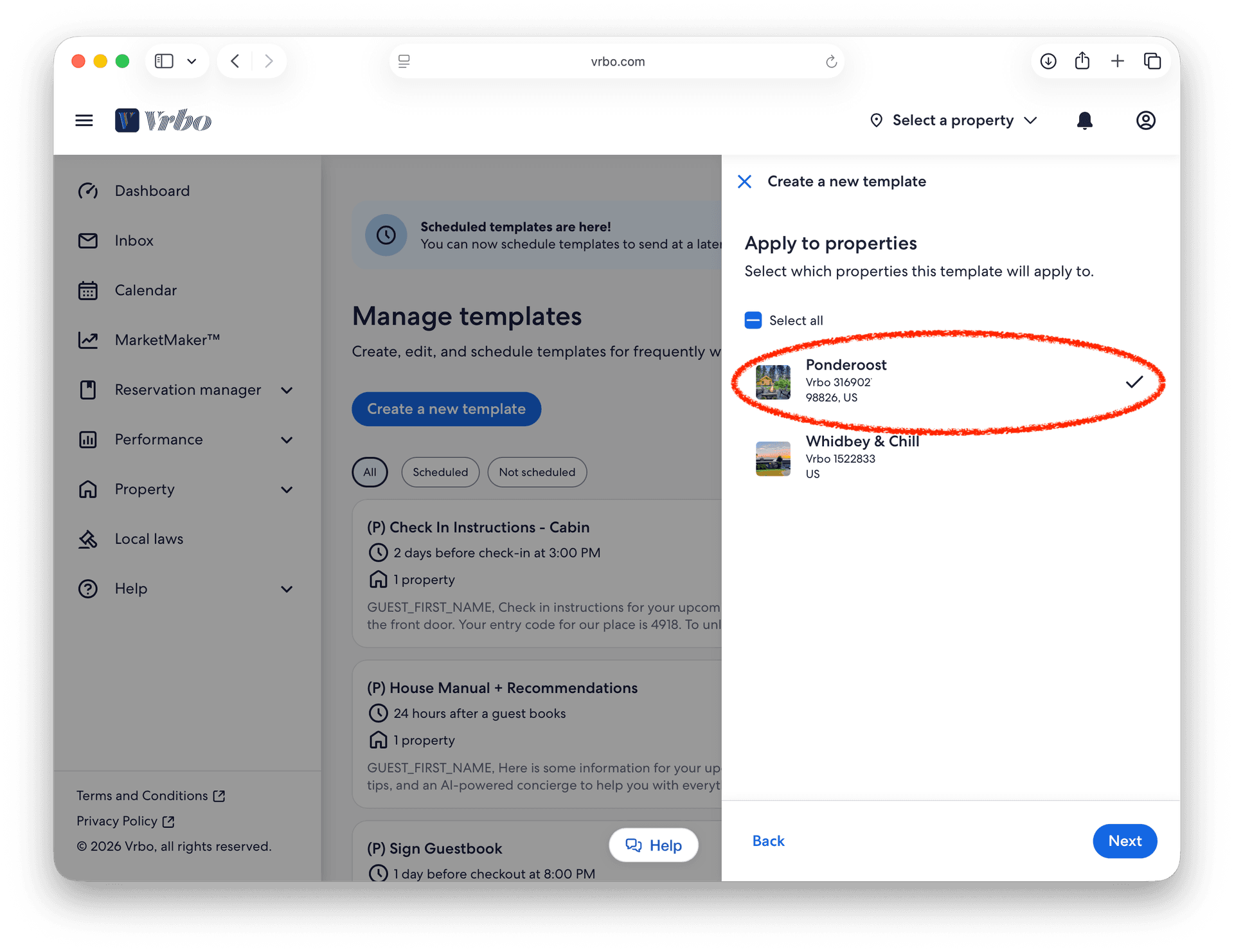
13. Select Property
Click on the property that would like to share this Guest Manual for. Then click on the Next button.
14. Preview & Save
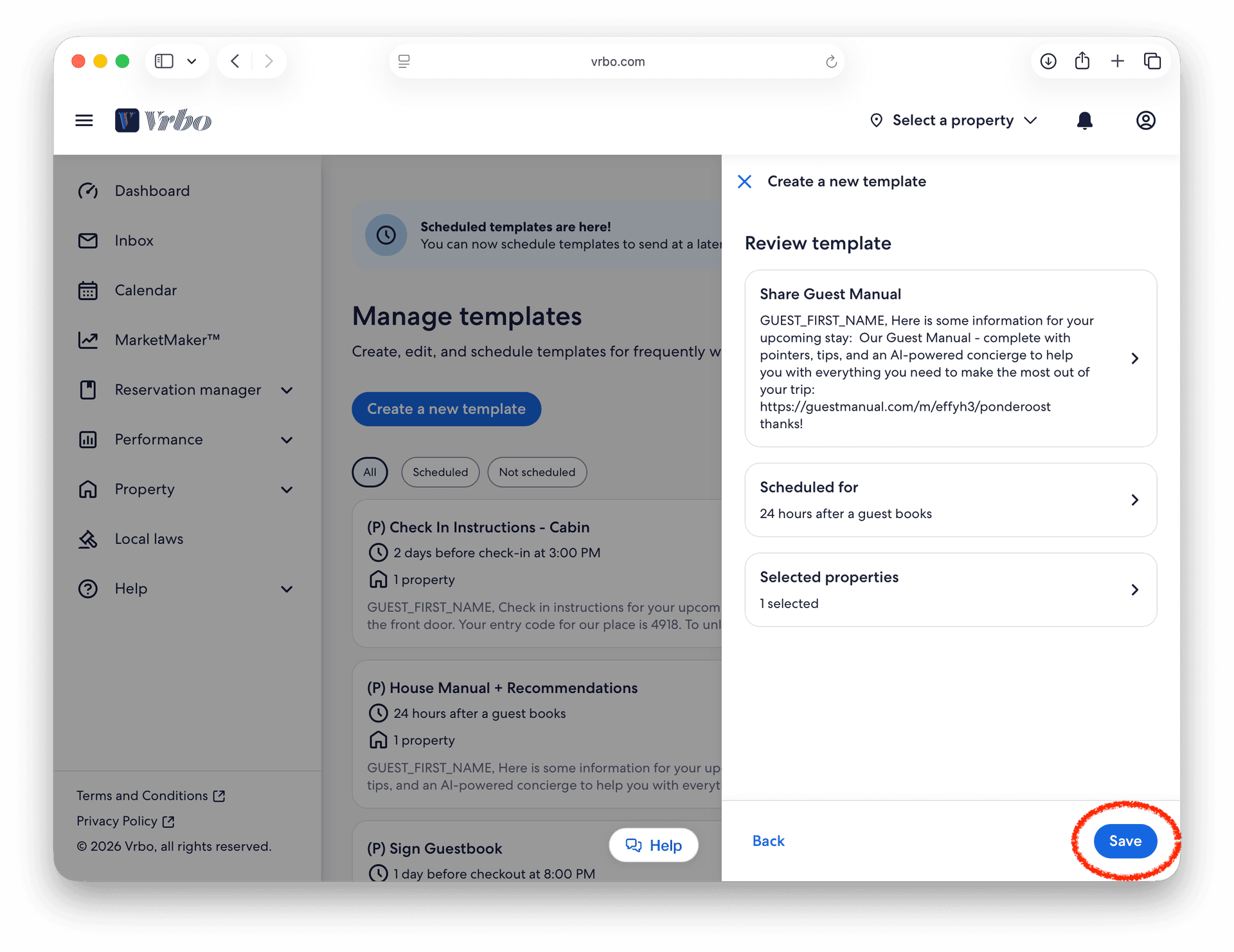
Review the new scheduled custom message template message, schedule, and property and make changes as necessary. When done, click on the Save button to create.
All set! Your Guest Manual will automatically be shared with guests 24 hours after they book giving them a one stop shop to plan their trip, learn about your property, and answer questions before they arise.
FAQ: Automating Your Vrbo Host Workflow

Naureen Ali
I am an Airbnb superhost with over 12 years of hosting experience running 2 top performing Airbnbs in the Pacific Northwest.
Last updated on